
Question-led guide · checklist
How can I check buttons, forms, and empty states in my first app?
A practical beginner check for labels, required inputs, invalid submissions, duplicate actions, helpful errors, keyboard use, and preserved form data.
Direct answer
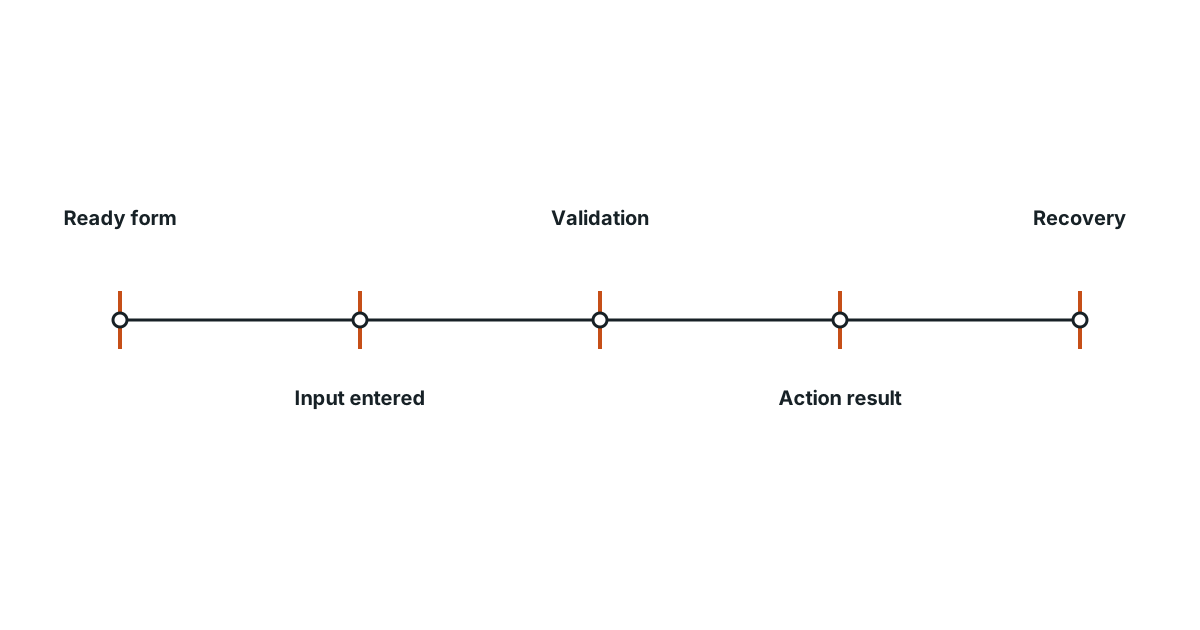
Check what happens before, during, and after each action. Try a valid entry, an empty required field, a repeated click, and a case with no results. Confirm that labels match behavior, errors explain how to recover, and the user’s input survives a failed attempt. Use the keyboard as well as the mouse to check that the form remains usable.
Read the promise made by each label
A button labeled “Save entry” promises something different from “Add to this page.” Before testing, decide what the action should do and where the result should appear. If data survives only until the page closes, a label that suggests durable saving may mislead the user. Review labels against actual behavior, not just whether they fit the design.
Check the first empty screen
Open the collection before any entries exist. The screen should explain what belongs there and offer a usable way to add it. A blank panel can look like a loading failure. Distinguish the collection being empty from a search returning no matches; a user may otherwise assume that filtering deleted their information.
Try a valid entry and a missing title
Use fictional practice data. Add one complete entry, then submit another without its required title. Confirm that the invalid submission creates no broken card. The message should identify the problem and help you correct it. Browser input constraints can assist, but the complete behavior includes where the error appears and whether the user understands it.
Preserve effort when an attempt fails
If a note is long and only the title is missing, do not make the user retype the note after correcting the error. For actions that contact a service, distinguish a pending request from success and failure. A disabled button may help prevent repeated submission, but the application must also define how repeated actions are handled when they still occur.
| Situation | What to observe |
|---|---|
| Empty collection | A useful explanation and next action |
| Missing required input | No invalid record and a specific correction |
| Repeated activation | The intended number of records |
| No search matches | An explanation that leaves saved data intact |
| Failed save | Input preserved and a clear recovery path |
| Keyboard navigation | Reachable controls and visible focus |
Follow the form using only the keyboard
Move through controls with Tab, type into the fields, and activate the relevant action using the keyboard. Check that field labels remain understandable and the error can be found without guessing from color alone. This short exercise often reveals controls that look like buttons but do not behave like familiar form elements.
Record states rather than a single screenshot
A polished screenshot proves very little about the invalid or pending state. Keep a short list of the actions you tried and the outcomes you observed. When asking AI for a correction, identify the failing transition: for example, “After an empty-title submission, the note disappears.” That gives the assistant a precise problem while keeping the final check within your own understanding.
Evidence and scope
- MDN input element: HTML input types and constraints provide browser behavior for form entry and validation.
- W3C WAI Validating Input: Accessible validation should identify errors and help the user correct the input.
The proposed checks are teaching tools; validate their behavior in the actual environment.
Evidence
HTML input types and constraints provide browser behavior for form entry and validation.
HTML input types and constraints provide browser behavior for form entry and validation.
Primary source · official-doc · checked Sep 11, 2026
Limit: This source supports the named mechanism, not the outcome or thresholds of the illustrative workflow.
Accessible validation should identify errors and help the user correct the input.
Accessible validation should identify errors and help the user correct the input.
Primary source · official-doc · checked Sep 11, 2026
Limit: This source supports the named mechanism, not the outcome or thresholds of the illustrative workflow.
Limitations
The scenarios and decision worksheets are original teaching examples. They are not measured deployments or guarantees; adapt the checks to the actual system and its documented behavior.
FAQ
- Does a required field guarantee the whole form is correct?
- No. Check record creation, error explanation, preserved input, keyboard use, and any server-side validation as well.
- Why check an empty collection separately from no search matches?
- They mean different things. One has no saved entries; the other may simply hide existing entries behind a filter.
Related guides
Continue within Build your first app with AI, or use one of these adjacent diagnostics:
Editorial QA: automated native-English, structure, source-presence, and link checks completed . This record is not an independent expert endorsement. Review boundary.